
Troubleshooting - phone keyboard not showing
If the keyboard does not appear when you try to add an idea on a phone or tablet, try the steps below.
To add an idea on a phone
-
Tap the column you want to add your idea to. On a phone, the map shows every column side by side, and tapping one opens it.
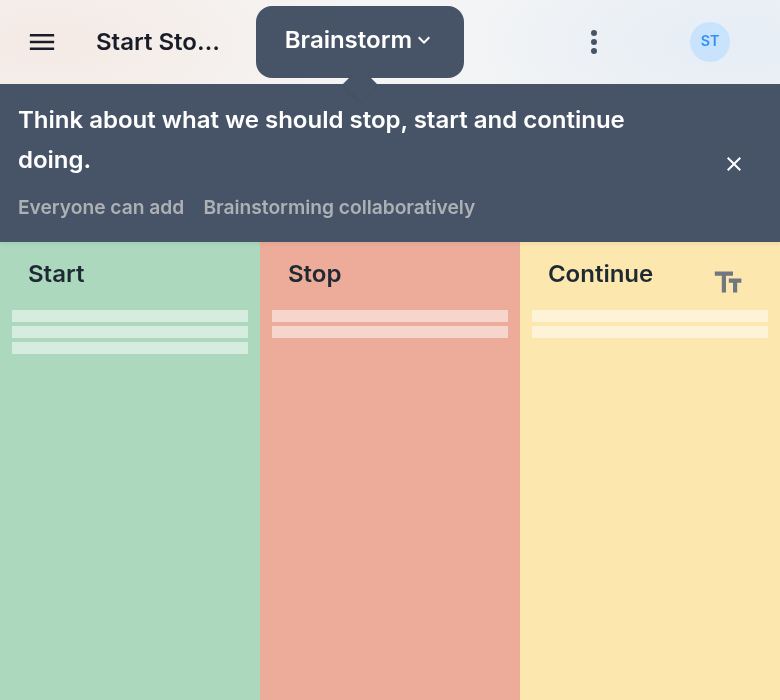
-
Tap the + box at the top of the column.
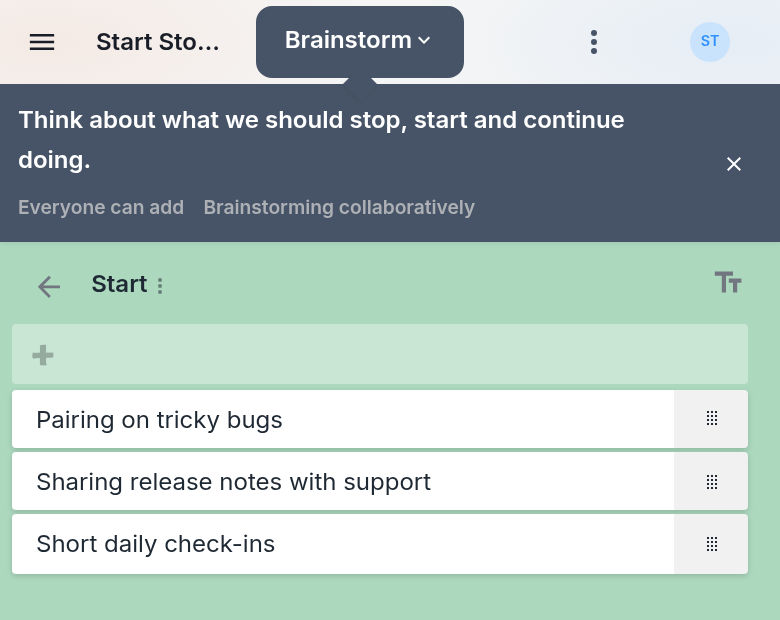
-
If the keyboard does not appear, tap inside the box once more.
- Type your idea, then press Enter.
On a map with a custom background, tap Tap to add in the area where you want your idea instead.
If there is no + box
Adding ideas is turned off for you in this step, for example because the step or map is locked or you joined as a Viewer. See Troubleshooting - ideas not saving or disappearing.
If you opened the map from another app
If you opened the map from a link inside another app, such as an email or chat app, open the link in your phone's web browser instead.