
Preview your map as a participant
As the map owner or facilitator, you may want to experience your activity from a participant’s perspective before inviting your stakeholders.
This allows you to check that:
- Instructions are clear.
- The process steps appear in the correct order.
- Participants have the right permissions.
- Voting, rating, grouping, surveys, and other activities work as expected.
- The overall experience supports your intended workshop outcome.
Option 1: Use a secondary email address
This is the best option when you want to test the full invitation and email verification experience.
1. Open your map.
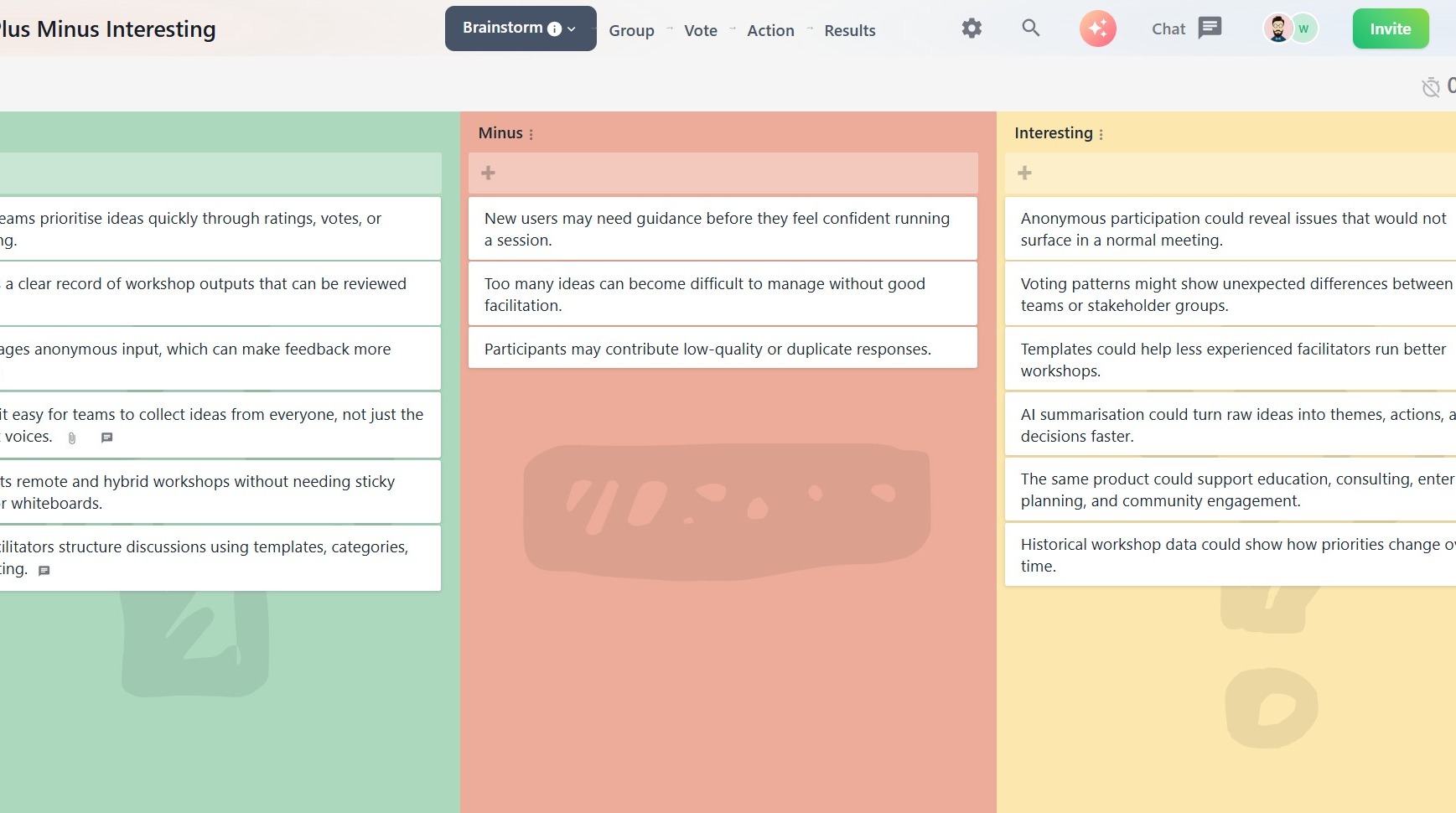
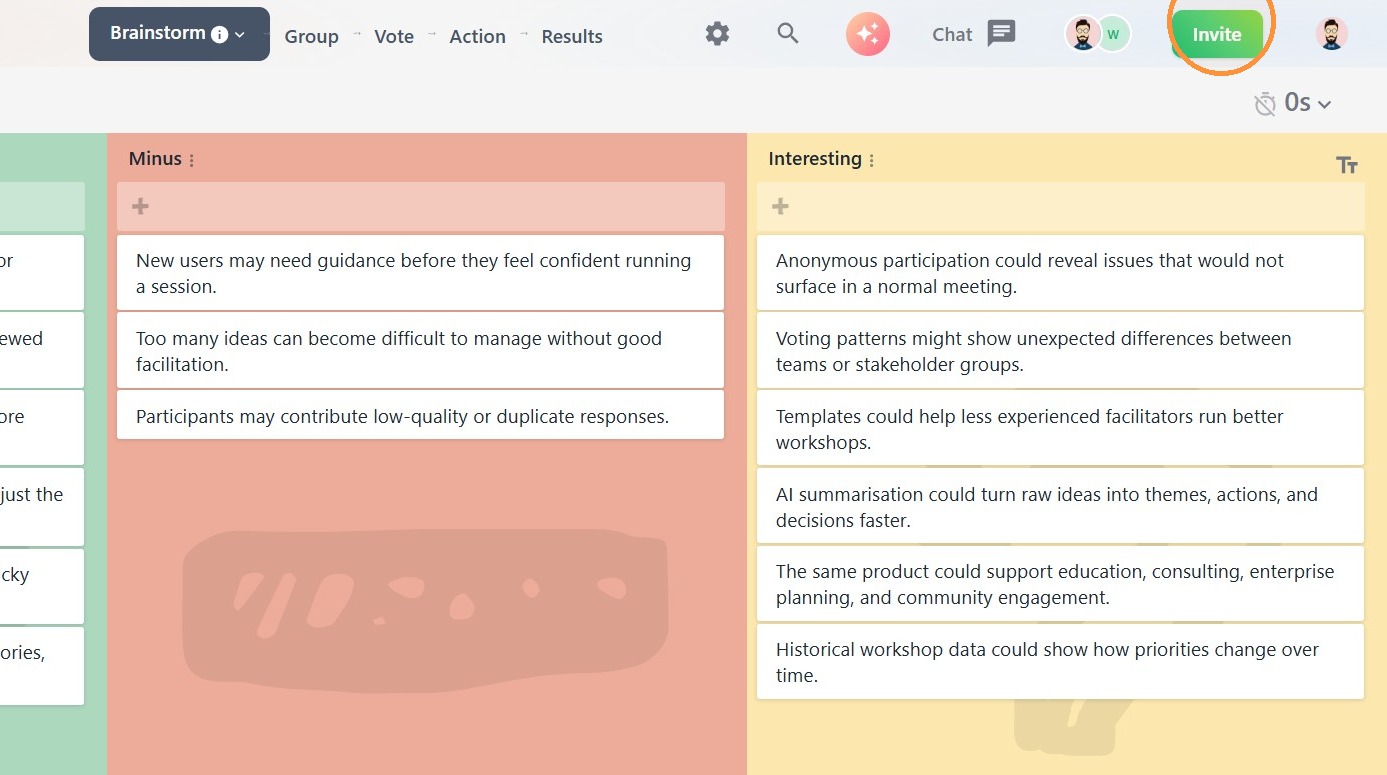
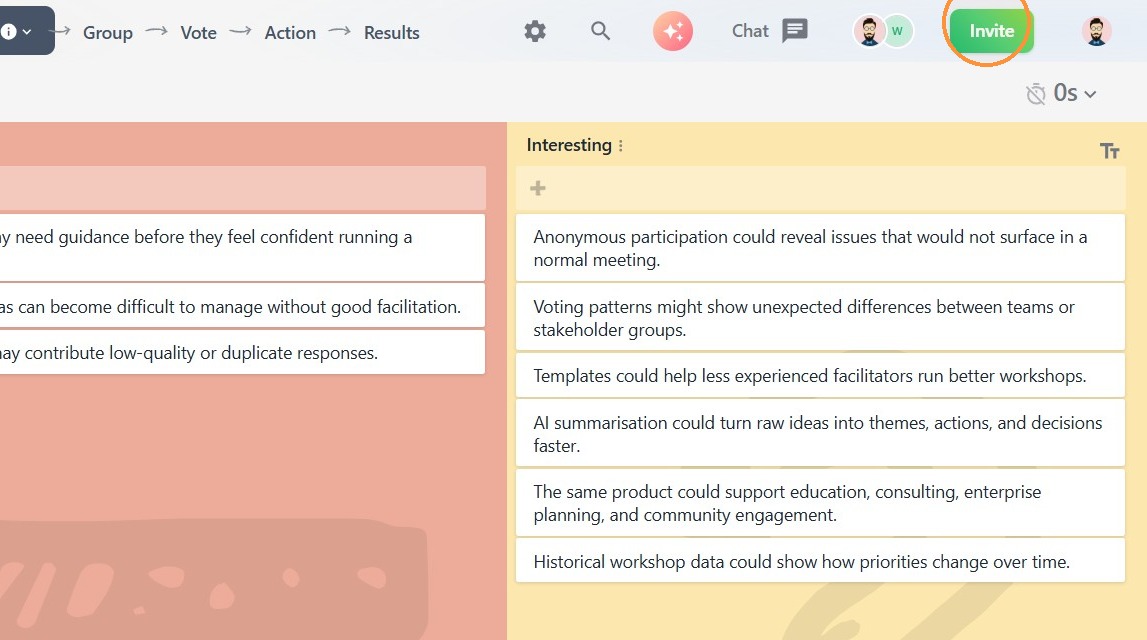
2. Click Invite in the top-right corner.
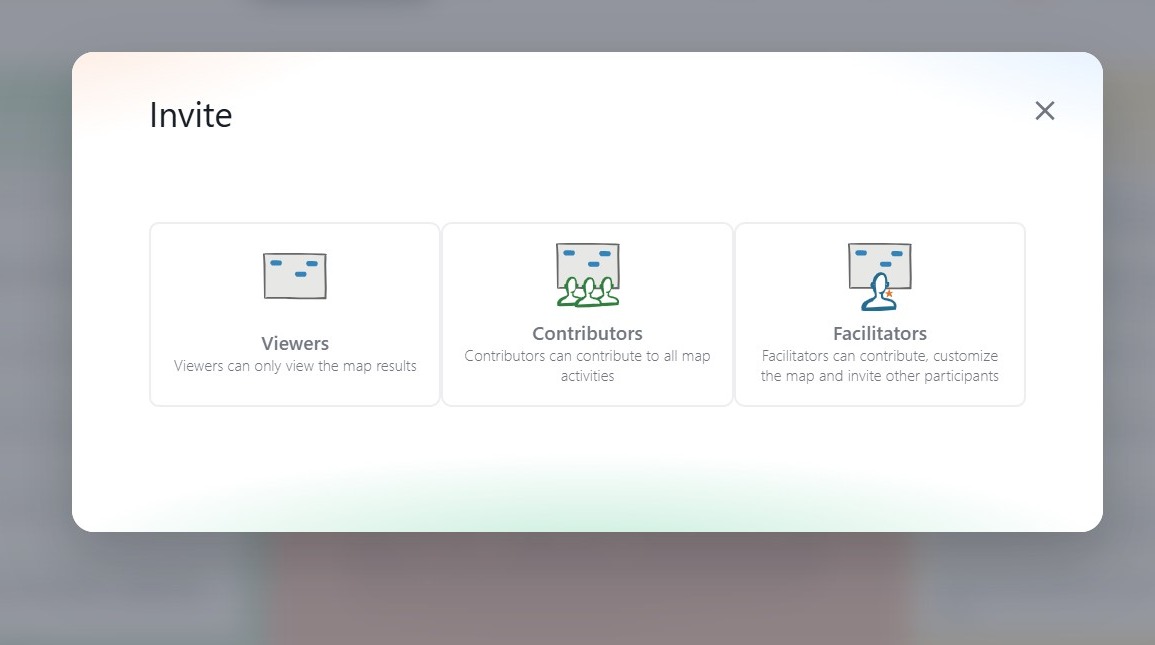
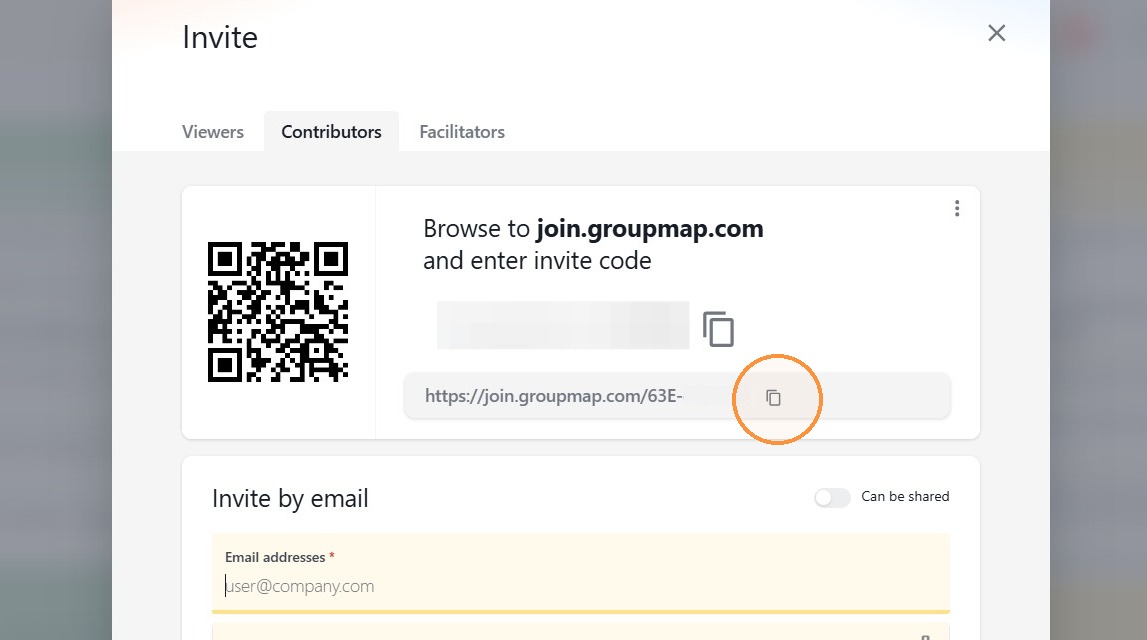
3. Select the participant role you want to test, such as Contributor or Viewer.
4. Invite a secondary email address that is different from the email linked to your owner or facilitator account.
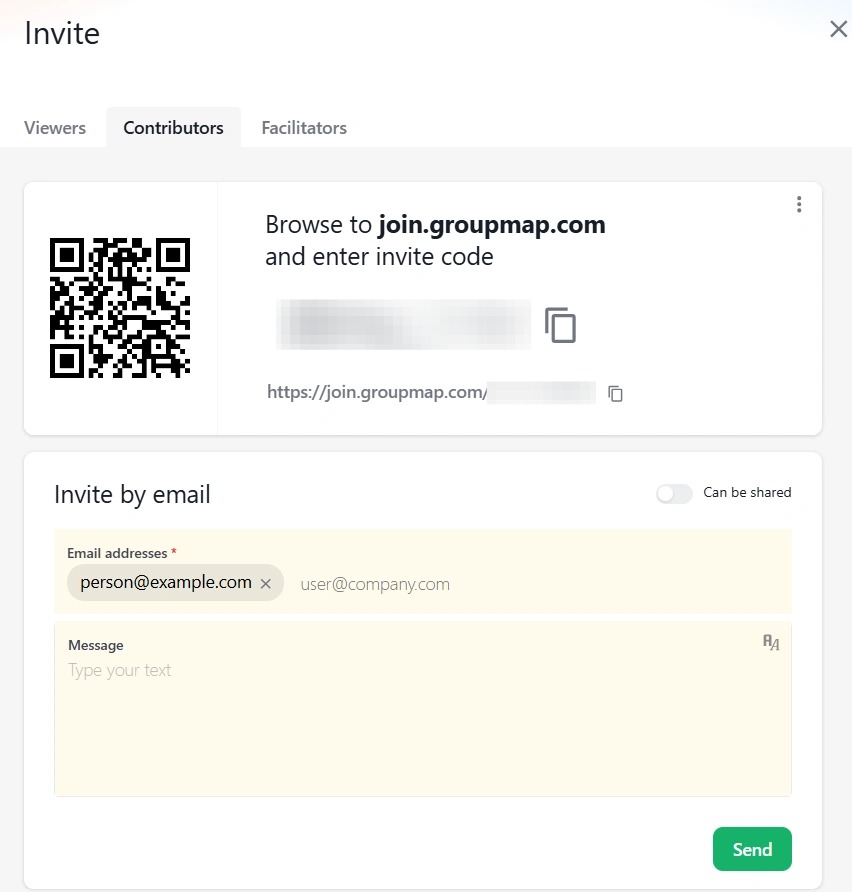
- Open the invitation using the secondary email address.
- Join the map and complete the activity as a participant.
Option 2: Use an incognito or private browsing window
Using an incognito window creates a separate browser session, allowing you to remain logged in as the facilitator in your regular browser window while testing the participant experience in the private window.
1. Open your map and click Invite.
2. Copy the participant invitation URL.
- Within your browser, open an incognito or private browsing window.
- Paste the invitation URL into the address bar.

- Join the map as a participant.